Finish the form here.
Open a PDF or try the fictional garden form. Select fills the PDF’s own fields. Pen draws anywhere. Text and Tick fill printed boxes, including scans. Signature imports a PNG from your device.
Move and correct
Choose Select, then tap an addition. Drag it to move; drag its lower-right handle to resize. Select text to edit its words and size. Delete selected removes your addition. Eraser removes your ink strokes. Undo and Redo restore your last changes.
On a phone, use Select to scroll the document. Pen uses one finger to draw; two fingers change zoom when you lift them. Fit returns to page width. Page controls keep every page’s edits.
Your signature
Choose a transparent PNG, then tap where it belongs. Resize it with the corner handle. Place signature again reuses it on another page during this session. You can also draw a signature with Pen.
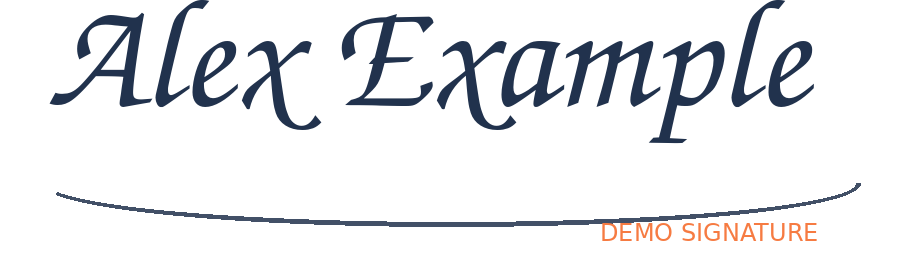
Download a fictional signature PNG · Download a flat sample form

Save and print
Save PDF downloads a new completed file, preserving the original page and editable form values. You can continue editing here. Print prepares the same completed PDF. If your browser does not open its print dialog automatically, follow Open the completed PDF to print and use that viewer’s Print action.
Reopening an exported copy lets you correct its native fields. Added ink, text, ticks and images become ordinary page content after export. They can be corrected individually while this editor session is still open.
Try the four-page synthetic lab form · Download its transparent demo signature
Keyboard
V Select · P Pen · H Highlight · E Eraser · T Text · K Tick · S Signature. Ctrl/Cmd+Z undo; Ctrl/Cmd+Shift+Z redo; Ctrl/Cmd+S save; Ctrl/Cmd+P print. Tab reaches fields and additions. Arrow keys move a selected addition; Shift moves ten points. Plus/minus resize; Delete removes. Enter edits selected text. Focus the page and press Enter to place text, a tick or an imported signature with the active tool.
Compatibility
Standard PDFs up to 30 MB and 100 pages are supported, including ordinary AcroForm text, multiline, checkbox, radio, dropdown and list fields. XFA, password-protected and already certificate-signed PDFs are refused. Some special boxes require Text or Tick. Paperwork uses a bundled Latin font; a character it cannot save produces an error and keeps your work intact. Original content is preserved without converting whole pages to screenshots.
Privacy
Your documents and signature images stay in browser memory. There is no upload, server processing, analytics, account, document database or automatic browser storage. Closing or reloading clears unsaved work. Save your completed PDF before leaving. Ordinary app scripts, fonts and PDF rendering resources load from this site. Embedded PDF actions and scripts are never run; document actions are removed from completed exports.
Why Paperwork?
A form should not require printing, handwriting and scanning just to add a few answers. Paperwork combines the everyday steps in one editor: fill the fields, write on the page, add a visual signature and save the finished PDF.